- Thanks to sharp-eyed readers Dmitry Zhuravlev-Nevsky and Alexander Wireen, I have corrected a bunch of typos in the "Writing Shell Scripts" section of the tutorials.
Wednesday, February 18, 2009
Today's Site Updates


Saturday, February 14, 2009
Peanuts And Software
I really enjoy factory tours. I've always had a fascination with how things work and how things are made. Over the years, I've been on some great tours, Syracuse China, Corning Glass, Ben & Jerry's Ice Cream, and best of all, the (now defunct) General Motors assembly plant in Baltimore.
In the past, it seemed like many companies offered tours of their factories to the public, and why not? The great companies were truly proud of what they were doing and were happy to show you. This even applied to products whose production processes are better left unseen.
In recent years, factory tours have gotten harder to find. I don't know the exact reason for this. Maybe it's the fear of litigation, or a desire to keep everything proprietary, I just don't know.
The alert among you may have noticed the story in yesterday's New York Times announcing that the Peanut Corporation of America has filed for bankruptcy and will be going out of business. As you may know, Peanut Corporation of America recently gained notoriety for knowingly shipping peanut butter to its customers contaminated with salmonella resulting in over 600 reported illnesses and 9 deaths. As the scandal unfolded, reports surfaced of unsanitary conditions in its plants including cockroaches, leaking roofs, and a report of a dead rat in one of its peanut roasters.
Somehow, I don't think they offered a factory tour.
What does this have to do with software? Plenty. When you make something in the full light of day, it's a lot less likely that something horrible is going on under cover of secrecy. Open source code is like a factory tour for software. You can wander around and feel the pride of those who created it.
Proprietary software is different. What are they hiding? Does their program have "rats in the roasters?"
You'll never know.
In the past, it seemed like many companies offered tours of their factories to the public, and why not? The great companies were truly proud of what they were doing and were happy to show you. This even applied to products whose production processes are better left unseen.
In recent years, factory tours have gotten harder to find. I don't know the exact reason for this. Maybe it's the fear of litigation, or a desire to keep everything proprietary, I just don't know.
The alert among you may have noticed the story in yesterday's New York Times announcing that the Peanut Corporation of America has filed for bankruptcy and will be going out of business. As you may know, Peanut Corporation of America recently gained notoriety for knowingly shipping peanut butter to its customers contaminated with salmonella resulting in over 600 reported illnesses and 9 deaths. As the scandal unfolded, reports surfaced of unsanitary conditions in its plants including cockroaches, leaking roofs, and a report of a dead rat in one of its peanut roasters.
Somehow, I don't think they offered a factory tour.
What does this have to do with software? Plenty. When you make something in the full light of day, it's a lot less likely that something horrible is going on under cover of secrecy. Open source code is like a factory tour for software. You can wander around and feel the pride of those who created it.
Proprietary software is different. What are they hiding? Does their program have "rats in the roasters?"
You'll never know.
Friday, February 13, 2009
Followup On My Dell Inspiron 530N
Had a problem with the monitor that came with my recently purchased Dell 530N with Ubuntu. After a couple of hours, the monitor would get brighter and brighter until it reached maximum brightness and then after a few minutes of that, the lamp in the monitor would go out leaving me with a black screen. I could turn the monitor off for a few minutes (and presumably, let it cool) and it would work for another couple of hours.
I got tired of that (Hey! I'm trying to write a book here!) so I called Dell's Ubuntu support number (1-866-622-1947) and got connected to an overseas call center. The representative had me perform a simple test, reboot the computer and press F2 to get to the setup screen, then just let it sit and see if the monitor would fail again. This test would eliminate the possibility of a video driver issue. Sure enough, after about 30 minutes, it went out again. I called back and talked to another representative who was able to see what had transpired during the first call. She arranged for a replacement to be shipped overnight to me. A refurbished monitor arrived the next afternoon.
I'm pleased with the service. Their support staff was polite and professional, but I didn't have a chance to test their Linux skills.
Maybe next time.
I got tired of that (Hey! I'm trying to write a book here!) so I called Dell's Ubuntu support number (1-866-622-1947) and got connected to an overseas call center. The representative had me perform a simple test, reboot the computer and press F2 to get to the setup screen, then just let it sit and see if the monitor would fail again. This test would eliminate the possibility of a video driver issue. Sure enough, after about 30 minutes, it went out again. I called back and talked to another representative who was able to see what had transpired during the first call. She arranged for a replacement to be shipped overnight to me. A refurbished monitor arrived the next afternoon.
I'm pleased with the service. Their support staff was polite and professional, but I didn't have a chance to test their Linux skills.
Maybe next time.
Thursday, January 29, 2009
Adding Ubuntu-style sudo To Fedora 10
One of the neat things about Ubuntu is the absence of a discreet user account for root. This was an unusual idea when it was introduced a couple of years ago, and I myself, had some initial doubts about it. But that was then and this is now. I have come to really enjoy this feature.
I recently installed Fedora 10 on one of my test systems and decided to see what was involved in getting a similar feature in Fedora.
The sudo command is governed by a configuration file named /etc/sudoers. This file defines the users who are allowed to use sudo and precisely what commands they are allowed to execute with elevated privileges. I have written definitions for this before, so I took a look at the Fedora 10 sudoers files to see how to add myself to the list of users that can execute any command as root.
What I discovered was that the Fedora 10 sudoers thoughtfully provides the following lines:
## Allows people in group wheel to run all commands
# %wheel ALL=(ALL) ALL
This definition states that any user belonging to the group wheel will have full access to all commands. Just what the doctor ordered!
So this leaves me with two things to do:
The first task is pretty easy. I just fire up vi (as root) and edit /etc/sudoers. I only need to remove the leading pound symbol to make the change:
## Allows people in group wheel to run all commands
%wheel ALL=(ALL) ALL
The second task is not very hard either. I bring up the graphical (yes, I'm cheating) user configuration tool and select my user account and press the "Properties" button, then select the "Groups" tab on the properties dialog. Scrolling to the bottom of the list, check the box labeled "wheel":
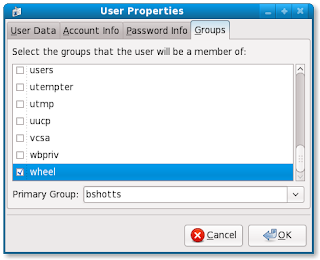
Press OK and we're done!
Here are a couple of questions for all you geniuses out there:
Have fun!
I recently installed Fedora 10 on one of my test systems and decided to see what was involved in getting a similar feature in Fedora.
The sudo command is governed by a configuration file named /etc/sudoers. This file defines the users who are allowed to use sudo and precisely what commands they are allowed to execute with elevated privileges. I have written definitions for this before, so I took a look at the Fedora 10 sudoers files to see how to add myself to the list of users that can execute any command as root.
What I discovered was that the Fedora 10 sudoers thoughtfully provides the following lines:
## Allows people in group wheel to run all commands
# %wheel ALL=(ALL) ALL
This definition states that any user belonging to the group wheel will have full access to all commands. Just what the doctor ordered!
So this leaves me with two things to do:
- Uncomment the line in the sudoers file to enable the definition.
- Add myself to the wheel group.
The first task is pretty easy. I just fire up vi (as root) and edit /etc/sudoers. I only need to remove the leading pound symbol to make the change:
## Allows people in group wheel to run all commands
%wheel ALL=(ALL) ALL
The second task is not very hard either. I bring up the graphical (yes, I'm cheating) user configuration tool and select my user account and press the "Properties" button, then select the "Groups" tab on the properties dialog. Scrolling to the bottom of the list, check the box labeled "wheel":

Press OK and we're done!
Here are a couple of questions for all you geniuses out there:
- How would you add yourself to a group using only the command line tools?
- What is the history and meaning the "wheel" group?
Have fun!
Monday, January 26, 2009
A "Command Line To The Rescue" Story
As you may recall from my earlier review of my new Dell desktop, I bought it to replace my previous Dell desktop, a Dimension 2400. Over the last couple of weeks I have installed a couple of distributions on my old system. First the Windows 7 Beta (the first installation of Windows in my house since 1996), a sad story that I hope to write about soon, and over the weekend I formatted over that horror and installed Fedora 10.
I've used a lot of Red Hat products over the years and I favor it for administration, however, I have a growing fondness for Ubuntu because it seems to deliver the best desktop user experience. When it comes to Red Hat stuff though, I'm pretty expert at installing it.
Now I have to digress a bit and talk about a phenomenon I have discovered about Linux. It is often useful to think about Linux as though it were a living thing. It's been said that Linux is based on evolution, not "intelligent design." This means that Linux evolves naturally in a series of fits and starts, rather than being the result of some grand plan. This is the opposite of proprietary software, which (if done properly) is the result of careful planning.
What this means is that sometimes a subsystem in Linux goes away and is replaced by another re-written replacement that addresses a need. And, of course, programmers prefer to re-write code rather than maintain old code. Anyway, this periodic "churn" of code is natural to the process.
The problem is that sometimes things that worked in previous versions stop working in the new versions. This is fairly common Linux, and it's perhaps its most off putting characteristic.
One case in point is the display driver for Intel integrated graphics chips. Admittedly, some of these chips really suck, especially the earlier ones. The new ones are better and also get official driver support from Intel. Over the last year or so, Linux distributions have been deploying the new "intel" driver replacing the previous "i810" driver. The new driver is in every way much better than the old driver, except it doesn't like the older chips very much.
This brings us back to my Dimension 2400, which, as you may have guessed by now, uses one of the old chips.
So I pop the Fedora 10 install DVD into the drive and reboot the machine. The installer starts and gets to the first graphical install screen and completely hangs. Dead, inert. It doesn't look like I'll be doing a graphical install this time.
I power-cycle the machine and just as the DVD starts to boot, i press the escape key and get:
boot:
Wonderful! A boot prompt. Now I know what to do. I enter:
boot: linux text
which instructs the boot loader to boot the kernel called "linux" and pass the argument "text" to the system. On a Red Hat style systems this will invoke the text mode installer. I answer all the prompts and the install gets underway. While I have some time to kill, I Google for a way to get the graphics working again. From my search, I determine that the problem isn't so much the new driver but rather that, by default, the new driver uses a new "acceleration method" called "EXA" rather than the previous method called "XAA". Making a one line change to the /etc/X11/xorg.conf file will cause X to revert to the old method and solve the problem.
After the installation is complete, I reboot the machine and it comes up in text mode. This is caused by a configuration file called /etc/inittab which contains a setting for the default run level, which is 3 for text mode and 5 for graphical mode on Red Hat style systems. In text mode you get a login screen:
Login:
I log in as root and create a personal account for myself:
useradd bshotts
passwd bshotts
After I create the account and set the password, I press Alt-F2 to get to the second virtual console. There I log in as bshotts and try to launch X. I do this by entering the command:
startx
The X server starts and almost gets to the desktop before it chokes again. Looks like it's time to fix that xorg.conf file. I restart the machine and and log in as root again. I go looking around in the /etc/X11 directory and notice that there is no xorg.conf file. This is because with modern X servers, the file is no longer required, as all the configuration is done dynamically at runtime which, in concept, is great when it works.
Bummer.
I think to myself, "there must be some kind of configuration program for X," so I start digging around in the man pages. I discover that the Xorg program has an option called -configure that will create an xorg.conf file based on the server's best guess of what the correct configuration should be. You must be root to use this option so I give it a try:
Xorg -configure
and it creates a file named xorg.conf.new in root's home directory. I copy this file to /etc/X11 which is where X expects to find it:
cp /root/xorg.conf.new /etc/X11/xorg.conf
Next, a little editing with vi and I add one line to the "Device" section of the file:
Option "AccelMethod" "XAA"
After saving the edited file, I login in as bshotts and try the startx command again and low and behold, I have a working desktop! I confirm that the graphics seem correct and log out of GNOME. This returns me to the text console. Since I want the system to work in graphical mode by default, I need to change the default run level. I do this by returning to my root console session and editing the /etc/inittab file. I change the last line to read:
id:5:initdefault:
changing the "3" to a "5" to set the run level to graphical. After saving the file I reboot the machine and everything works. New installation successful.
So what does all this teach us? It teaches us that sometimes there is no substitute for a good command line. A command line can work wonders. It teaches us that, with enough digging around, most problems are solvable. And most of all, it teaches us you should keep learning and never give up.
Hope you had a good weekend too!
I've used a lot of Red Hat products over the years and I favor it for administration, however, I have a growing fondness for Ubuntu because it seems to deliver the best desktop user experience. When it comes to Red Hat stuff though, I'm pretty expert at installing it.
Now I have to digress a bit and talk about a phenomenon I have discovered about Linux. It is often useful to think about Linux as though it were a living thing. It's been said that Linux is based on evolution, not "intelligent design." This means that Linux evolves naturally in a series of fits and starts, rather than being the result of some grand plan. This is the opposite of proprietary software, which (if done properly) is the result of careful planning.
What this means is that sometimes a subsystem in Linux goes away and is replaced by another re-written replacement that addresses a need. And, of course, programmers prefer to re-write code rather than maintain old code. Anyway, this periodic "churn" of code is natural to the process.
The problem is that sometimes things that worked in previous versions stop working in the new versions. This is fairly common Linux, and it's perhaps its most off putting characteristic.
One case in point is the display driver for Intel integrated graphics chips. Admittedly, some of these chips really suck, especially the earlier ones. The new ones are better and also get official driver support from Intel. Over the last year or so, Linux distributions have been deploying the new "intel" driver replacing the previous "i810" driver. The new driver is in every way much better than the old driver, except it doesn't like the older chips very much.
This brings us back to my Dimension 2400, which, as you may have guessed by now, uses one of the old chips.
So I pop the Fedora 10 install DVD into the drive and reboot the machine. The installer starts and gets to the first graphical install screen and completely hangs. Dead, inert. It doesn't look like I'll be doing a graphical install this time.
I power-cycle the machine and just as the DVD starts to boot, i press the escape key and get:
boot:
Wonderful! A boot prompt. Now I know what to do. I enter:
boot: linux text
which instructs the boot loader to boot the kernel called "linux" and pass the argument "text" to the system. On a Red Hat style systems this will invoke the text mode installer. I answer all the prompts and the install gets underway. While I have some time to kill, I Google for a way to get the graphics working again. From my search, I determine that the problem isn't so much the new driver but rather that, by default, the new driver uses a new "acceleration method" called "EXA" rather than the previous method called "XAA". Making a one line change to the /etc/X11/xorg.conf file will cause X to revert to the old method and solve the problem.
After the installation is complete, I reboot the machine and it comes up in text mode. This is caused by a configuration file called /etc/inittab which contains a setting for the default run level, which is 3 for text mode and 5 for graphical mode on Red Hat style systems. In text mode you get a login screen:
Login:
I log in as root and create a personal account for myself:
useradd bshotts
passwd bshotts
After I create the account and set the password, I press Alt-F2 to get to the second virtual console. There I log in as bshotts and try to launch X. I do this by entering the command:
startx
The X server starts and almost gets to the desktop before it chokes again. Looks like it's time to fix that xorg.conf file. I restart the machine and and log in as root again. I go looking around in the /etc/X11 directory and notice that there is no xorg.conf file. This is because with modern X servers, the file is no longer required, as all the configuration is done dynamically at runtime which, in concept, is great when it works.
Bummer.
I think to myself, "there must be some kind of configuration program for X," so I start digging around in the man pages. I discover that the Xorg program has an option called -configure that will create an xorg.conf file based on the server's best guess of what the correct configuration should be. You must be root to use this option so I give it a try:
Xorg -configure
and it creates a file named xorg.conf.new in root's home directory. I copy this file to /etc/X11 which is where X expects to find it:
cp /root/xorg.conf.new /etc/X11/xorg.conf
Next, a little editing with vi and I add one line to the "Device" section of the file:
Option "AccelMethod" "XAA"
After saving the edited file, I login in as bshotts and try the startx command again and low and behold, I have a working desktop! I confirm that the graphics seem correct and log out of GNOME. This returns me to the text console. Since I want the system to work in graphical mode by default, I need to change the default run level. I do this by returning to my root console session and editing the /etc/inittab file. I change the last line to read:
id:5:initdefault:
changing the "3" to a "5" to set the run level to graphical. After saving the file I reboot the machine and everything works. New installation successful.
So what does all this teach us? It teaches us that sometimes there is no substitute for a good command line. A command line can work wonders. It teaches us that, with enough digging around, most problems are solvable. And most of all, it teaches us you should keep learning and never give up.
Hope you had a good weekend too!
Subscribe to:
Posts (Atom)


 Posts
Posts

